
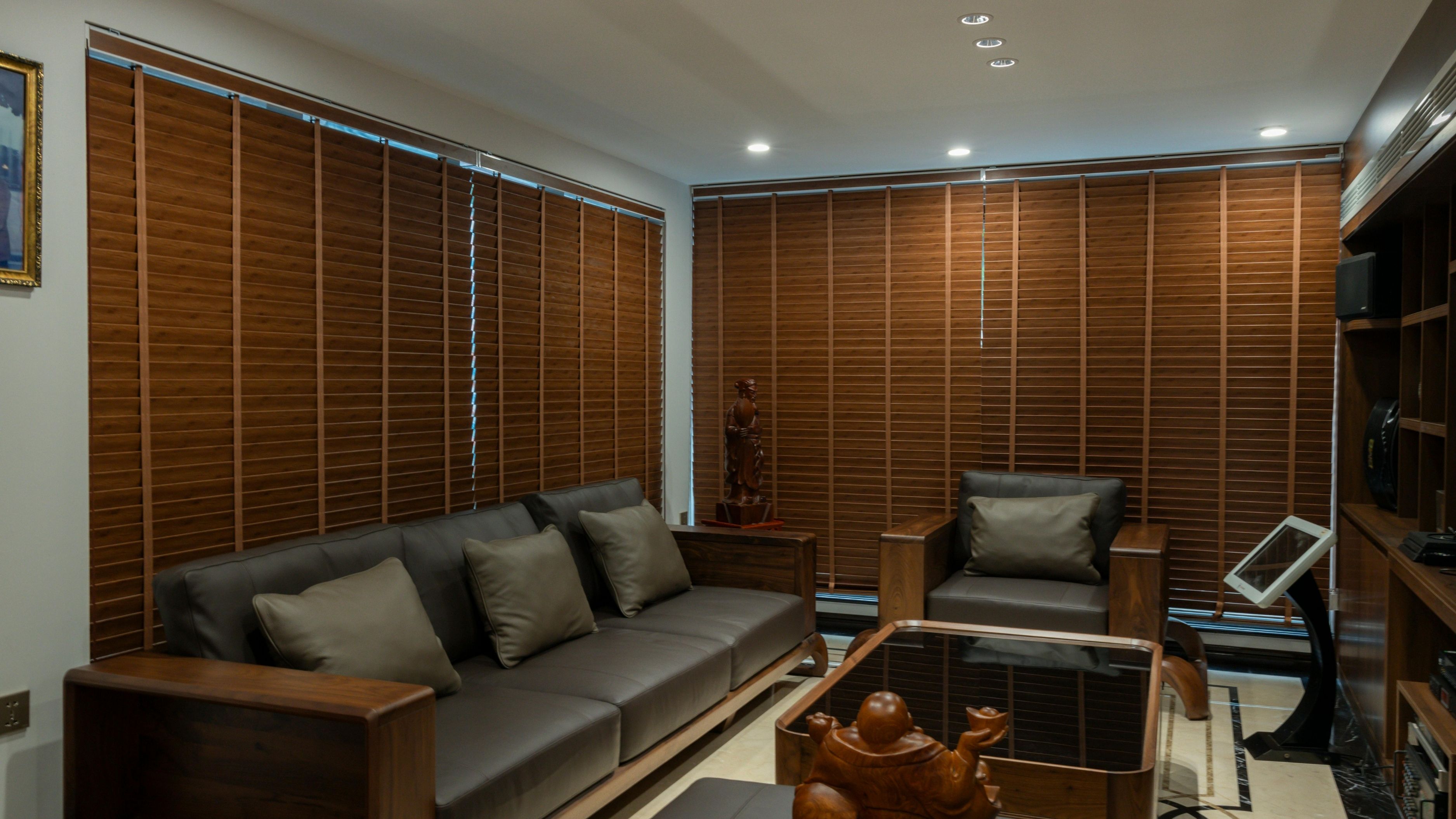
This guide walks you through the full connection process for both Alexa and Google Home, covers the most common smart blind brands, and explains what to do when things don't connect the way they should.
What You'll Need Before You Start
Before diving into the app steps, it helps to know what you're actually working with. Smart blinds connect to Alexa or Google Home in one of two ways: directly via Wi-Fi, or through a hub or bridge device that your blinds communicate with first. Knowing which setup applies to your blinds determines which path you follow.
Hub-based systems like IKEA Dirigera, Somfy TaHoma, Hunter Douglas PowerView, and Lutron Caséta require a hub plugged into your router via Ethernet. The hub talks to your blinds over a proprietary wireless protocol (usually Zigbee, Z-Wave, or RF), and the hub then connects to Alexa or Google Home over Wi-Fi. These systems tend to be more reliable because the hub handles communication rather than each blind trying to maintain its own Wi-Fi connection.
Wi-Fi direct systems like LEVOLOR motorized blinds, some Budget Blinds motorized options, and certain generic smart blinds connect directly to your 2.4 GHz Wi-Fi network without a separate hub. The setup is simpler in terms of hardware, but these systems can be more sensitive to Wi-Fi signal strength and router compatibility.
Check your blind's documentation or the manufacturer's app to confirm which type you have. You'll also want your Wi-Fi password ready, your phone charged, and both the blind's manufacturer app and the Alexa or Google Home app installed before you begin.
Step 1: Set Up the Blinds in Their Manufacturer App First
This step is non-negotiable. Before Alexa or Google Home can control your blinds, the blinds need to be fully set up and working in their own dedicated app. Skipping straight to Alexa setup is the most common reason the integration fails or the device doesn't appear.
Open the manufacturer's app (IKEA Home Smart, Hunter Douglas PowerView, Somfy TaHoma, LEVOLOR, or whichever applies to your blinds) and follow the in-app setup process. For hub-based systems, this means connecting the hub to power, linking it to your router via the included Ethernet cable, and then pairing each blind to the hub through the app. For Wi-Fi direct blinds, this typically involves putting the blind's motor into pairing mode (usually by holding a button on the motor or remote) and connecting it to your 2.4 GHz network through the app.
Once setup is complete, test the blinds through the manufacturer app. Open them, close them, set a position. If they respond correctly in their own app, you're ready to link to Alexa or Google Home. If they're not working in the app yet, stop here and troubleshoot that first – voice assistant integration inherits whatever issues exist at the app level.
Step 2A: Connecting to Amazon Alexa
Open the Alexa app on your phone and tap the Devices tab at the bottom of the screen. In the top right corner, tap the + icon and select Add Device. On the next screen, select the category your blinds fall under – this is usually listed as "Blinds & Shades" or "Other" depending on your Alexa app version.
Alexa will show you a list of supported brands. Scroll through and select your blind's manufacturer. If you don't see your brand listed, tap "Other" at the bottom – some brands connect through a skill rather than through the direct brand integration flow.
Alexa will prompt you to enable the corresponding skill. Tap "Enable Skill" and you'll be redirected to log in with your manufacturer app account credentials. This authorization step is what grants Alexa permission to communicate with your blind system. Use the same email and password you created when setting up the manufacturer app.
After authorizing, Alexa will discover your devices. This usually takes 30–60 seconds. Once complete, your blinds should appear in the Alexa app under Devices. Give them a tap to confirm they respond, then try a voice command: "Alexa, open the living room blinds." If Alexa says it can't find the device, proceed to the troubleshooting section below.
Step 2B: Connecting to Google Home
Open the Google Home app and tap the + button in the top left corner of the home screen. Select Set up device, then choose Works with Google from the options. This is the integration path for third-party smart devices rather than native Google products.
In the search bar, type your blind brand's name. Google Home will show matching services – select yours. You'll be directed to a login page for the manufacturer's app. Sign in with your manufacturer account credentials (same ones you use in the manufacturer app) and approve the permissions request.
Google Home will then discover and import your blinds. They'll appear in your Home app, and you can assign them to rooms and create automations from there. Test with a voice command: "Hey Google, close the bedroom blinds." If the blinds don't respond or don't appear after discovery, check the troubleshooting section.
Brand-Specific Notes
A few common brands have nuances worth knowing about:
IKEA Dirigera hub: The newer Dirigera hub replaced the older TRÅDFRI gateway and works with both Alexa and Google Home through the IKEA Home Smart app. Make sure your Dirigera hub firmware is updated before attempting integration – outdated firmware is a common cause of pairing failures. The IKEA Home Smart app handles updates automatically when connected to Wi-Fi.
Hunter Douglas PowerView Gen 3: The Gen 3 system supports direct integration with both Alexa and Google Home via the PowerView app without requiring a separate hub for basic control. Earlier PowerView generations (Gen 1 and 2) do require the PowerView Hub. Check which generation your system is to know what you need.
Somfy TaHoma: Somfy blinds connect through the TaHoma hub and the TaHoma app, which then links to Alexa or Google Home. One detail that trips people up: the TaHoma skill in Alexa uses the same login as the TaHoma app, but if you have multiple TaHoma accounts or have changed your password recently, you'll need to re-authorize the skill.
Lutron Caséta: If your motorized shades use Lutron Caséta (common in mid-to-high-end installations), they connect through the Lutron Smart Bridge rather than directly. The Lutron skill for Alexa and the Lutron integration for Google Home are both well-supported and generally reliable. The Lutron app must show your shades as active before attempting the voice assistant link.
Common Mistakes to Avoid
The biggest one is trying to use a 5 GHz Wi-Fi network. Most smart home devices – including the hubs and bridge devices for smart blind systems – only connect to 2.4 GHz networks. If your router broadcasts a combined SSID that uses both bands, your phone might be on 5 GHz while the hub is trying to connect to 2.4 GHz, causing the setup to fail. Either split your network into separate SSIDs with different names, or temporarily move your phone to the 2.4 GHz band during setup.
Skipping the manufacturer app setup, as mentioned earlier, reliably causes problems. Alexa and Google Home don't discover devices that aren't already configured and communicating in their native app. Always verify the blinds work in their app before adding the voice assistant layer.
Naming devices inconsistently creates confusion later. If you set up a blind as "Living Room Shade" in the manufacturer app but then rename it "Front Window" in the Alexa app, the two systems can get out of sync after updates. Keep names consistent across platforms, especially if you plan to use routines or automations.
Failing to re-authorize after a password change is another common issue. If you changed your manufacturer app password and the Alexa or Google Home integration suddenly stopped working, the skill or service connection needs to be re-authenticated with the new credentials. In Alexa, go to Skills & Games, find your blind skill, and select Disable then re-enable to trigger a fresh login. In Google Home, remove the linked service and re-add it.
Troubleshooting: When the Blinds Don't Appear
If your blinds don't show up after Alexa or Google Home completes discovery, work through these checks in order.
First, confirm the blinds are responding in the manufacturer app right now – not just that they worked earlier. If they've gone offline in the app, reconnect them there before retrying the voice assistant discovery.
Second, check that the skill or service is properly linked. In Alexa, go to More → Skills & Games → Your Skills and confirm the relevant skill appears and shows as "Enabled." In Google Home, tap your account icon → Linked services and verify your blind service appears there.
Third, run discovery again manually. In Alexa, say "Alexa, discover my devices" or go to Devices → + → Add Device → Other and let it scan. In Google Home, go to + → Set up device → Works with Google and re-link the service.
Fourth, if your blind uses a hub, power cycle the hub by unplugging it for 30 seconds and plugging it back in. Once the hub reconnects to your network (give it a couple of minutes), attempt discovery again.
If none of these steps work, the most reliable fix is to remove the integration entirely – disable the skill in Alexa or unlink the service in Google Home, then redo the connection from scratch. This clears any authentication tokens or configuration issues that built up during previous attempts.
Setting Up Routines and Schedules
Once your blinds are connected, routines are where the real convenience comes in. In the Alexa app, go to More → Routines → + to create a new routine. You can set a schedule trigger (such as "every weekday at 7am, open the bedroom blinds") or link it to another action (such as "when I say Alexa, good morning, turn on the lights and open the blinds").
In Google Home, tap Automations → + and follow the same logic – set a time, a sunrise/sunset trigger, or a voice command as the trigger, then add your blind action. Google Home also supports "when someone arrives home" triggers if you have Google's presence detection set up.
For households with multiple rooms and multiple sets of blinds, grouping them by room in both apps makes voice commands much more manageable. "Alexa, close all the upstairs blinds" is only possible if the blinds in those rooms are all assigned to a group or room with that label.
FAQ
My blinds work in the app but Alexa says "device not responding." What's wrong?
This usually means the skill authorization has expired or the hub has lost its connection. Check the hub's indicator light – if it's showing an error or offline status, reconnect it to your network. Then open the manufacturer app, confirm the blinds respond, and try the Alexa command again. If the problem persists, disable and re-enable the skill to refresh the authorization.
Can I control smart blinds with both Alexa and Google Home at the same time?
Yes. Most manufacturer apps allow you to link to multiple platforms simultaneously. Both Alexa and Google Home can be connected to the same blind system at the same time, and commands from either will work independently.
My router has a combined 2.4 GHz and 5 GHz network. How do I separate them?
Log into your router's admin panel (typically at 192.168.1.1 or 192.168.0.1 in a browser), navigate to the wireless settings, and look for an option to enable separate SSIDs for each band. Name them differently (for example, "HomeNetwork" for 2.4 GHz and "HomeNetwork_5G" for 5 GHz). Connect your smart devices and hubs to the 2.4 GHz network.
Do smart blinds work without internet if the hub is still online?
It depends on the brand. Some hub-based systems like Lutron Caséta maintain local control through the hub even without internet – commands from the app or voice assistant may not work, but physical buttons and schedules stored on the hub continue to function. Others require cloud connectivity for all operations. Check your specific brand's documentation for local control capability.
Can I include smart blinds in a "Good Night" routine with other devices?
Absolutely – this is one of the most popular uses. In Alexa or Google Home routines, you can chain multiple actions: say "Alexa, good night," and have it close the blinds, dim the lights, lock the front door, and set the thermostat all at once. Set this up in the Routines section of either app using your preferred trigger phrase.
📚 Sources
Amazon – "Connect your smart home devices to Alexa" – developer.amazon.com https://developer.amazon.com/en-US/alexa/connected-devices
Google – "Set up Works with Google devices in the Google Home app" – support.google.com https://support.google.com/googlenest/answer/9249088
IKEA – "IKEA Home Smart app support" – ikea.com https://www.ikea.com/us/en/customer-service/product-support/smart-home/
Hunter Douglas – "PowerView Automation integration guide" – hunterdouglas.com https://www.hunterdouglas.com/operating-systems/motorized/powerview-motorization
Lutron – "Caséta smart bridge setup and integrations" – lutron.com https://www.lutron.com/en-US/Products/Pages/SingleRoomControls/CasetaWireless/CasetaWireless-SmartBridge/Overview.aspx
🔍 Explore Related Topics
Best smart blinds compatible with Alexa and Google Home
How to set up a smart home routine for morning and bedtime
Wi-Fi smart devices not connecting: common fixes
How to split 2.4 GHz and 5 GHz networks on your router
IKEA Dirigera hub setup guide step by step
Hunter Douglas PowerView vs Lutron Caséta compared
How to add smart home devices to Google Home rooms
Alexa routines: how to set them up and what they can do
Best smart home hubs for DIY setups
How to troubleshoot a smart home device that won't respond