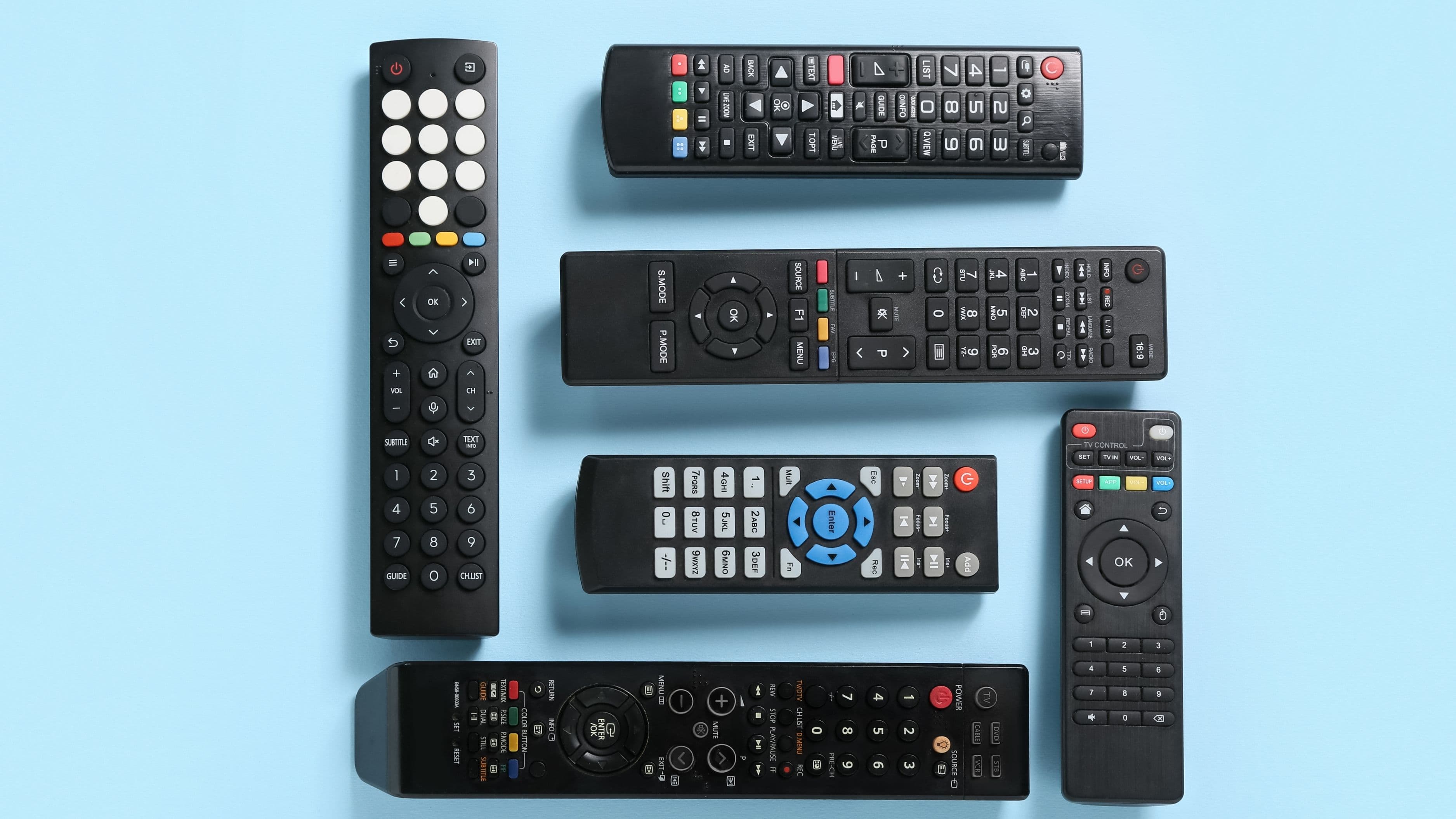

Setting one up sounds more complicated than it is. Logitech's Harmony line (the most widely used universal remote system) walks you through the process via their MyHarmony software and app, and once it's done, the result is genuinely impressive. This guide covers the full setup from scratch: what you need, how to program each device, how to create activities, and how to troubleshoot the things that commonly go wrong.
Estimated time: 1–2 hours for a full setup
Difficulty: Beginner to intermediate
Cost: Remote hardware only (software is free)
What You'll Need
Before you start, gather the following:
Your Harmony remote (any current model: Harmony 650, 665, 700, Smart Control, Elite, or Companion with Hub)
A Windows or Mac computer with internet access (for MyHarmony software setup)
The Harmony desktop app or MyHarmony account at myharmony.com
The USB cable that came with your remote (for initial sync)
A list of all the devices in your home theater – make, model number, and connection type (HDMI, optical, RCA, etc.)
The original remotes for each device nearby (you may need to look up codes)
The model numbers matter more than most people expect. Harmony's device database has thousands of entries, but they're specific. A Samsung UN55TU8000 and a Samsung UN55TU8300 may have different IR command sets, so pulling the exact model number off the back or bottom of each device before you start saves a lot of back-and-forth.
Step 1: Create Your MyHarmony Account and Install the Software
Go to myharmony.com and create a free account if you don't already have one. Download and install the Harmony desktop app for Windows or Mac – this is the primary setup tool and you'll use it every time you want to make changes to your remote's programming.
Once installed, open the app, sign in, and plug your Harmony remote into your computer with the included USB cable. The app will detect it and walk you through adding it to your account. If you have an older Harmony remote that was previously set up, the app will show you its existing configuration so you can edit from there rather than starting over.
The desktop app is where all the serious programming happens. The Harmony phone app (available for iOS and Android) is primarily for controlling the remote once it's set up – it doesn't have the full device management features that the desktop app does.
Step 2: Add Your Devices
This is the core of the setup, and it's worth doing carefully. In the MyHarmony app, go to "Devices" and click "Add Device." You'll be asked for the device type (TV, AV Receiver, Blu-ray Player, Streaming Media Player, Cable/Satellite Box, etc.), manufacturer, and model number.
Work through each piece of equipment in your home theater one at a time. For a typical setup this might include:
Television (your display)
AV receiver or soundbar (your audio processing)
Streaming device (Apple TV, Roku, Fire TV, etc.)
Blu-ray or DVD player
Cable or satellite box (if applicable)
Game console (if you want it controlled by the remote)
For each device, Harmony searches its database and loads a pre-configured IR command set. Most mainstream devices from the past 15 years are in the database. If your device isn't found, there's an option to manually program commands by having Harmony "learn" them from your original remote – more on that in the troubleshooting section.
After adding a device, the app may ask which inputs that device connects to. For example, it might ask which HDMI port your streaming device is plugged into on your receiver, or which optical input your TV connects to on your soundbar. Be specific here – this is the information that allows activities to automatically switch inputs when you launch them.
Step 3: Configure Your Activities
Activities are what make a Harmony remote genuinely useful. An activity is a one-button launch sequence that powers on all the right devices, sets the correct inputs, and puts each device into the right mode. "Watch TV," "Watch a Movie," "Listen to Music," and "Play a Game" are typical activities.
In the app, go to "Activities" and click "Add Activity." A setup wizard walks you through it. For a "Watch TV" activity, for example, the app will ask:
Which device do you watch TV on?
Which device controls the volume?
Which device provides the content (cable box, antenna tuner, etc.)?
What input does each device need to be set to?
Go through each activity you want to create. A standard home theater setup typically has 3–5 activities. Don't try to create an activity for every possible scenario – stick to what you actually use regularly. You can always add more later.
One thing to configure during activity setup is the button layout. The app shows you what each button on the remote will do during that activity and lets you reassign them. For a "Watch TV" activity, you'd typically want the number buttons to change channels, the volume buttons to control the receiver or soundbar, and the navigation buttons to control your cable box. Make sure these are set correctly before syncing.
Step 4: Sync to the Remote
Once your devices are added and your activities are configured, click "Sync" in the app. This pushes all the programming to the remote via the USB cable. The sync takes anywhere from 30 seconds to a few minutes depending on how many devices and activities you've set up.
After syncing, unplug the remote and test each activity. Point the remote at your equipment and press one of your activity buttons. Watch whether the right devices power on, the inputs switch correctly, and the on-screen navigation responds as expected. This first test almost always reveals something that needs adjustment – an input that wasn't set correctly, a device that powers on too slowly before the remote sends the input-switch command, or a volume control routed to the wrong device.
Step 5: Fine-Tune Timing and Commands
The most common issue after the first sync is that devices don't respond in the right order. Harmony sends commands in sequence when an activity launches, but some devices – particularly AV receivers – take a few seconds to power on before they're ready to accept an input-switch command. If the input-switch command arrives before the receiver is ready, it gets ignored and you end up on the wrong input.
The fix is to adjust device delays in the app. Go to "Devices," select the slow device, and look for "Change Device Settings." There's usually an option to add a power-on delay (in seconds). Adding 2–4 seconds to a slow receiver is often all it takes to resolve the timing issue. Re-sync after making this change and test again.
You can also adjust inter-command delays – the gap the remote waits between sending one command and the next. If a device is missing commands entirely (particularly in activity startup sequences), increasing this delay usually resolves it.
Step 6: Test the Off Sequence
People often test the "on" sequence but forget to test the "off" sequence. Pressing the "Off" button on a Harmony remote is supposed to turn off all active devices. Test this carefully – some devices don't respond to the generic power-off command in Harmony's database and stay on when everything else turns off.
If a specific device isn't powering off correctly, go into that device's settings in the app and look for the power command options. Some devices require a discrete "power off" command rather than a toggle "power on/off" command. The Harmony database sometimes defaults to the toggle command, which can cause it to turn a device back on instead of off if the timing is slightly off.
Common Mistakes to Avoid
The most frequent setup mistake is entering the wrong model number. Harmony will find a device that "seems right" and you'll get most commands working, but a few buttons will do nothing or do the wrong thing. Always double-check your model number directly on the device, not from memory or a receipt.
Another common issue is not specifying the correct input connections during activity setup. If you tell Harmony your streaming device is on HDMI 2 when it's actually on HDMI 3, the activity will switch to the wrong input every time. Check the physical connections on your devices before filling in this information.
Don't skip the delay adjustments. Almost every setup with an AV receiver needs at least a small timing tweak after the first sync. Skipping this step and accepting "it mostly works" leaves your setup less reliable than it should be.
Troubleshooting: When Things Don't Work
Device not in database: Use the "Learn" function in the device settings to teach Harmony the IR commands directly from your original remote. Hold the original remote a few inches from the Harmony and follow the on-screen instructions. This works well for all basic commands.
Remote controls some devices but not others: This is usually a line-of-sight issue. IR remotes require a clear path to the device's IR receiver. Check that nothing is blocking the IR sensor on the unresponsive device, or that the device isn't behind a cabinet door that absorbs the signal. Harmony's Mini Blaster accessory (for Hub-based models) can extend IR signals to equipment inside cabinets.
Volume goes to the wrong device: Go back into the activity settings and re-specify which device controls the volume. This setting is per-activity, so check each one where the volume behavior is wrong.
Activity turns on wrong inputs: Revisit the input connection information for each device in the activity. Even one wrong input selection will break the sequence.
Remote works intermittently: Check the batteries first. Harmony remotes are power-hungry and performance degrades noticeably before the low-battery indicator appears. Replace with fresh alkaline batteries and retest.
FAQ
Does Harmony work with smart home devices like Alexa or Google Home? The Harmony Hub-based models (Smart Control, Companion with Hub, Elite) integrate with Alexa and Google Home, allowing voice commands like "Alexa, watch a movie" to trigger Harmony activities. The Hub connects via Wi-Fi and the integration is set up through the Alexa or Google Home app after the Harmony is configured.
Can I control devices behind a closed cabinet door? IR signals don't pass through solid cabinet doors reliably. The Harmony Hub models use Mini Blasters – small IR emitters you place inside the cabinet directly in front of each device's IR sensor – which solve this completely. The Hub sends the IR signal wirelessly to the blasters, which then re-emit it inside the cabinet.
Is Harmony still being supported by Logitech? Logitech discontinued new Harmony hardware in 2021, but the MyHarmony software and cloud services remain operational as of 2024, and Logitech has not announced a shutdown date. Existing Harmony remotes continue to work and receive database updates. If you're buying one new, look for remaining stock of the Harmony Elite or Hub systems as the most capable options.
Can I add a device that was released after Logitech stopped updating the database? Yes, using the Learn function to manually program IR commands from the original remote. Any device with an IR remote can be added this way regardless of whether it's in the database.
How do I reset a Harmony remote and start over? In the MyHarmony desktop app, there's a "Reset Remote" option in device settings that clears all programming and returns it to factory defaults. You can then re-sync from scratch or from your saved cloud configuration.
📚 Sources
Logitech Harmony Support – Getting Started with MyHarmony: https://support.myharmony.com/en-us/getting-started
Logitech Harmony Support – Adding and Editing Devices: https://support.myharmony.com/en-us/harmony-experience-with-logitech
Logitech Harmony Support – Creating and Editing Activities: https://support.myharmony.com/en-us/activities
Logitech Harmony Support – Fixing Sequence Timing Issues: https://support.myharmony.com/en-us/sequence
Logitech Harmony Support – Using the Learn IR Feature: https://support.myharmony.com/en-us/learning-ir-commands
CNET – How to Set Up a Logitech Harmony Remote: https://www.cnet.com/home/smart-home/how-to-set-up-a-logitech-harmony-remote/
RTings.com – Universal Remote Controls Explained: https://www.rtings.com/remote-control/reviews/best/universal
AVS Forum – Harmony Remote Troubleshooting Guide: https://www.avsforum.com/threads/harmony-remotes-the-complete-guide.1348423/
PCMag – The Best Universal Remotes: https://www.pcmag.com/picks/the-best-universal-remotes
Digital Trends – Logitech Harmony Remotes: Everything You Need to Know: https://www.digitaltrends.com/home-theater/logitech-harmony-remotes-explained/